These sections describe the Sound Player tool:
If the Sound Player tool is not already running you can open it now by clicking the word Sound Player . The Sound Player tool lets you play the following types of audio files on your system:
AIFF
AIFF-C
MIDI (see “Playing a MIDI File”)
MPEG-1
Sun/NeXt
Microsoft WAVE
If you are not sure what the format of your sound file is, do this to find out:
Highlight your sound file icon by clicking on it once (do not open the icon, just select it with your cursor).
With the icon highlighted, hold down the right mouse button.
A Desktop menu appears.
Select “Get Sound Info” from the Desktop menu.
A window appears that gives information (including the file format) describing your sound file.
To play an audio file with Sound Player:
If Sound Player is not already open, you can start it now by:
Clicking on this red launch word: Sound Player .
Or, selecting Media Tools from the Find toolchest on your desktop. The Media Tools icon catalog page appears. Click on the Sound Player icon.
Select an audio file in one of these ways:
Pull down the File menu and select “Open.” A file browser appears. Use the file browser to select an audio file.
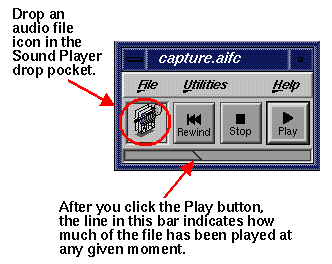
Drop an audio file icon in the Sound Player drop pocket. See Figure 9-1.
Press the Play button.
The audio file will play. As it does, a line moves across the bar underneath, indicating how much of the file has been played, as shown in Figure 9-1.
To stop playing the file, click the Stop button,
To rewind so that you can play the file again, click Rewind.
To exit Sound Player, open the File menu and select “Quit.”
 | Note: If you don't hear the audio file, either the volume is too low (see “Adjusting the Volume”), or you don't have audio support in your workstation. If you don't have audio support, error messages appear in your console window. |
For a list of audio file formats accepted by Sound Player, see “About Sound Player.”
To adjust the volume and other audio parameters, open the Audio Control Panel from the Sound Player Utilities menu. Use the Audio Panel Speaker sliders to adjust the volume.
Sound Player has three menus: a File menu, Utilities menu, and Help menu. The Utilities menu contains a command for opening the Audio Control Panel (see “Adjusting the Volume”). If you have an external MIDI device connected to your workstation, the MIDI Devices submenu will also be under the Utilities menu (see “Playing a MIDI File”). The Help menu contains commands for opening sections of the Sound Player online help. The File menu includes the following commands:
| Clone Window | Creates an additional Sound Player window, exactly like the one you are cloning. For example, if Sound Player currently contains a file named capture.aifc, the clone will also contain that file. | |
| Open | Brings up a standard file browser to help you find an audio file. | |
| Save As | Allows you to create an additional file by saving the current file under a new name. | |
| Quit | Closes Sound Player. |
You can use the Sound Player controls to play a MIDI file over an external MIDI device (such as a MIDI synthesizer) if you have the MIDI device's input connected to your workstation's serial port. See your workstation owner's guide for instructions on installing serial devices.
After you have connected the MIDI device to the serial port, you must use the Port Setup tool to complete the software configuration of the port. Open the Port Setup tool now by clicking on this red launchword: Port Setup . Refer to the instructions in the Port Setup tool's online Help.
You can tell that the MIDI port is properly configured by pulling down the Sound Player Utilities menu. If it is properly configured, there will be a MIDI Devices submenu under the Utilities menu. Now you can drop a MIDI file in the Sound Player drop pocket and use the Play, Stop, and Rewind buttons to play the file over the external MIDI device.
| Note: Alternatively, you can play a MIDI device over your workstation speaker if you have the MIDI device's audio output hooked up and configured (with the Port Setup tool) to your workstation. |