This chapter describes in detail the function of each window, menu, keyboard accelerator, and display in the C++ Browser user interface. For a task-oriented description of commonly used functions, refer to Chapter 6, “Using the C++ Browser: A Sample Session.”
This chapter contains the following sections:
Class View is the primary C++ Browser window (see Figure 7-1). It opens when you select “C++ Browser” from the Admin menu of the WorkShop Static Analyzer. Class View displays class members and related classes of a selected class, called the current class. Class View lets you perform a variety of static analysis database queries using the display. Detailed query results can be displayed in Source Views and in the Static Analyzer. You can launch graphical views of classes or calls from the Class View window to enhance the information. Also, you can generate reference pages from Class View.

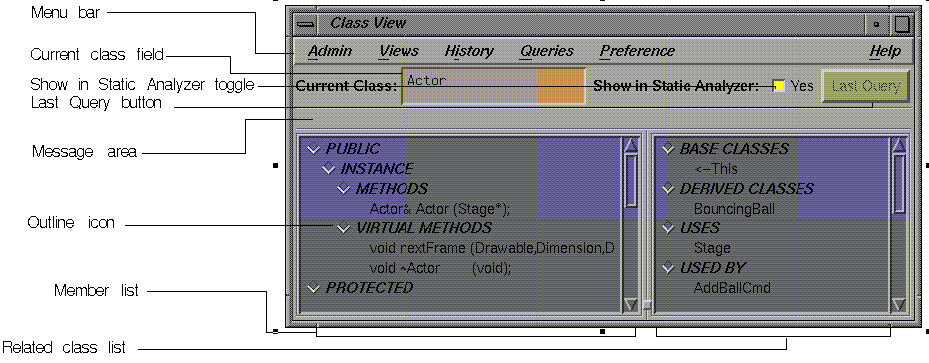
The next sections describe the function of each element of the Class View window.
This section describes the menus found in the menu bar of the Class View window (see Figure 7-2). By choosing the dashed line (the first item in each of the menus), you can “tear off” the menu from the menu bar, so that it is displayed in its own window, and is thus always visible. Some menus contain submenus, which can also be torn off and displayed in separate windows. Finally, this section provides an alphabetical lookup table of the keyboard accelerators that are shortcuts for many of the menu selections.

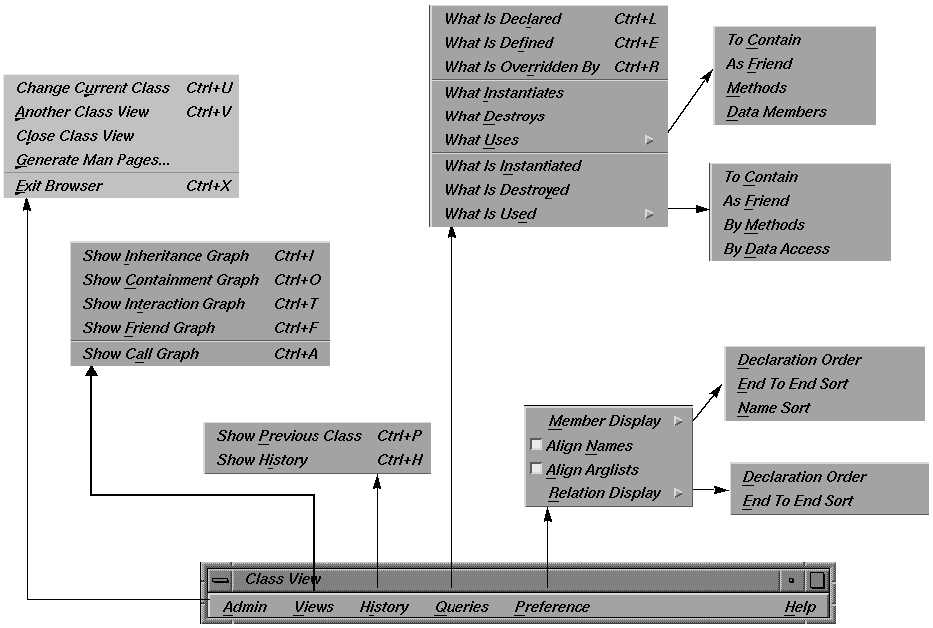
The Admin menu contains commands for selecting a new current class, for manipulating Class View windows, generating reference pages (man pages), and exiting the Class View.
| “Change Current Class” |
 | |
| “Another Class View” |
| |
| “Close Class View” |
| |
| “Generate Man Pages...” |
Select individual classes by clicking on them. To start over with no classes selected, click Unselect All. If you want a reference page for every class in the list, click Select All. Clicking the Generate button creates a reference page template for each selected class. If reference pages exist for selected classes, the browser warns you, unless you toggle Warn Overwrite: to No. Output files go in the directory shown in the Man Page Directory field, if it exists. To specify a different output directory using the Select Man Page Directory dialog box, click the Set Directory button in the Man Page Generator window.  | |
| “Exit Browser” | quits the C++ Browser, closing all windows launched from it (except Source View). The Static Analyzer window from which the browser was launched is not affected. |


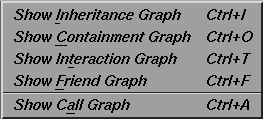
The Views menu contains commands for opening windows with graphical views, as shown in Figure 7-5. For descriptions of the display and controls, refer to “Class Graph and Call Graph Displays”. Each of the first four selections opens a Class Graph window for the current class, with a specific relationship; refer to “Class Graph Window”. The last selection opens a Call Graph window; refer to “Call Graph Window”.
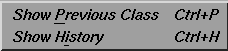
The History menu contains commands that let you quickly select previously chosen classes for display in the Class View window (see Figure 7-6). If no class was selected previously, a message appears.
| “Show Previous Class” |
| |
| “Show History” |
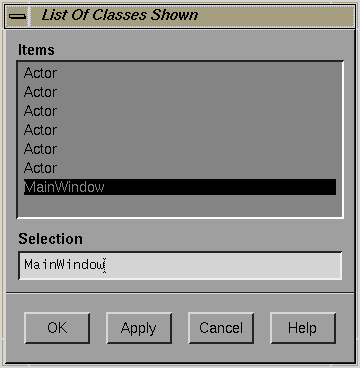
To select a class, choose one from the list by clicking on it with the left mouse button, and then press the Apply button. To select a class and simultaneously close the chooser window, click on the item and then click on the OK button, or simply double-click on the item in the list. The selected class then becomes the current class, and the information in the Class View window changes to reflect this. The Cancel button closes the chooser window without changing the current class. |
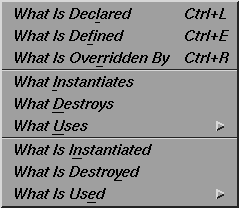
The Queries menu contains a set of predefined searches for information about the current class, as shown in Figure 7-8. The Class View window outlines display the results of each query by highlighting classes or members. If the Show in Static Analyzer toggle is set to yes, detailed results of the query appear in the WorkShop Static Analyzer window from which you launched the C++ Browser (refer to “Show in Static Analyzer Toggle”). Descriptions of the current query and the magnitude of the results of the query are shown in the message area between the current class field and the outline lists. The selections are:
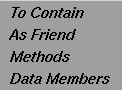
| ”What Uses” submenu (see Figure 7-9) |
| |
| “What Is Instantiated” |
| |
| “What Is Destroyed” |
|
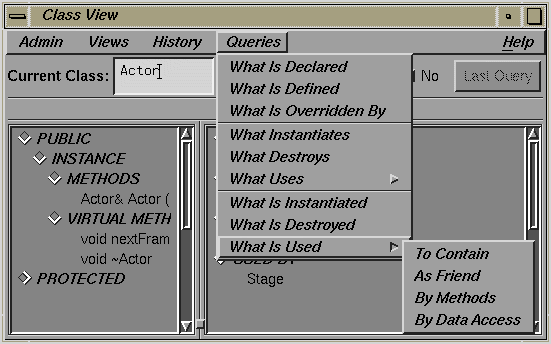
| “What Is Used” submenu (see Figure 7-10) |
Additional queries on classes, data members and methods are accessible from pop-up menus described in “Member List” and “Related Class List”. |
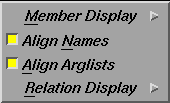
The Preference menu allows you to control how the class information is displayed in the window (see Figure 7-11). The selections are:
| “Member Display” submenu (see Figure 7-12) |
|
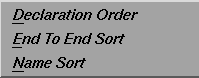

| “Relation Display”submenu (see Figure 7-13) |
|
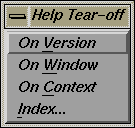
The Help menu contains commands that allow you to access online information and documentation for the C++ Browser, as shown in Figure 7-14. It is part of the Static Analyzer help system. See Chapter 2, “Using Online Help,” in the CASEVision Environment Guide for more detailed information on how to use the C++ Browser help features.

The Current Class text field is directly below the menu bar (see Figure 7-15). It displays the name of the currently selected class in the Class View window. You can type into this field to change the current class.
Type a complete class name into the text field and then press the <Enter> key to make the change effective. If you type a partial string and then press the <space bar>, the browser attempts to complete the class name with a class from the fileset. It gives a beep if it finds more than one matching class name. If a match is made, press the <Enter> key to make the change effective.
If you type a question mark (?) into the Current Class field, a class chooser dialog window (List of Classes) opens. You can select a new class by left-clicking on a class name in the chooser window's scrolling list, or click once with the left mouse button and then click on the OK or Apply buttons. Clicking Apply leaves the chooser window open; other combinations close the chooser window.
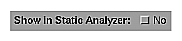
The Show in Static Analyzer toggle is directly to the right of the Current Class field (see Figure 7-16). When the toggle is set (highlighted and labeled Yes), the results of all queries are displayed in the WorkShop Static Analyzer window from which the C++ Browser was launched, providing detailed source information not listed in the Class View window. If no results are found, and the Static Analyzer window is open, it comes to the front with an error message. Refer to the CASEVision/WorkShop User's Guide for more information on the Static Analyzer.

The Last Query button is to the far right, directly beneath the Help menu (see Figure 7-17). Clicking on this button displays the results of the most recent query in the WorkShop Static Analyzer window from which the C++ Browser was launched.
The Class View message area is located directly below the Current Class field (see Figure 7-18). This area displays the most recent query as an English sentence, listing both the query question and the name of the data member, method, or class that is the object of the query. The end of the line displays query results, such as how many members and classes are involved.
The lower two-thirds of the Class View window contains two side-by-side lists that contain information about the currently selected class in outline form (see Figure 7-18).
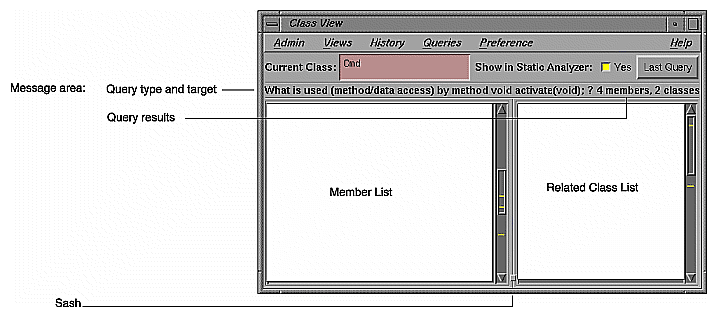
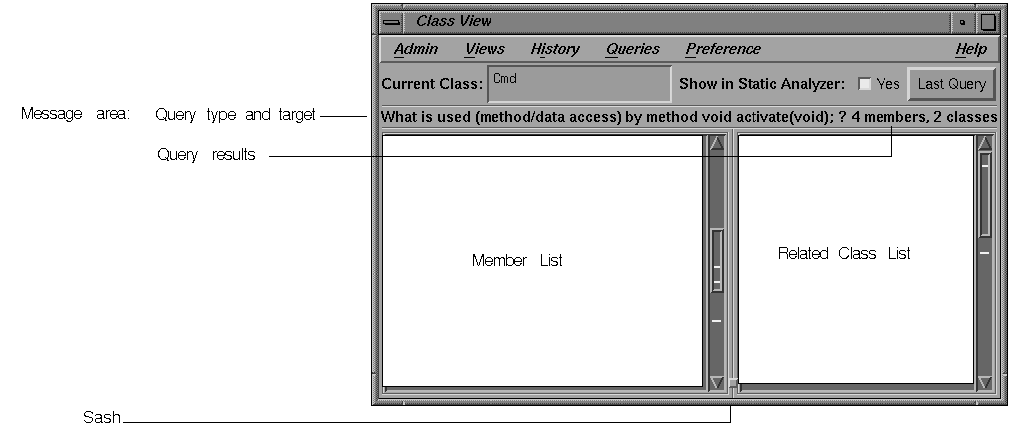
The lefthand, or member list, provides a detailed view of the members of the current class.
The righthand, or related class list, displays the relationships of other classes and of friend functions to the current class.
The organization of each of these lists is described in “Member List” and “Related Class List”. This section describes features common to both lists. You can change the widths of the lists by moving the sash or central divider.

The lists of members and class are organized in an outline format. By clicking on the outline icon to the left of a heading, you can collapse or expand the list under that category. The direction in which the outline icon points indicates if the heading is expanded or collapsed; downward-pointing outline icon indicates that the list is expanded (see Figure 7-19), while a right-pointing icon indicates that the category is collapsed (see Figure 7-20).

To collapse an outline list, click on the heading's downward-pointing outline icon. Class View hides the entries for that heading, and the icon toggles to become a right-pointing arrow, as shown in Figure 7-21.
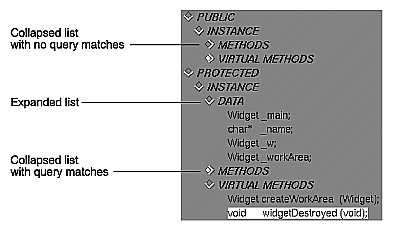
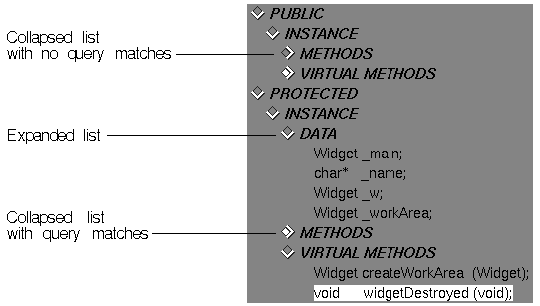
To expand a list of members or classes under a particular heading, click on the heading's right-pointing icon. Class View displays the entries for that heading, and the icon toggles to become a downward-pointing arrow.

A highlighted right-pointing outline icon indicates that one or more of the collapsed entries matches the most recent query (see Figure 7-22). Click on the outline icon to display the entry.
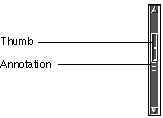
Both outline lists make use of annotated scroll bars as a means of locating highlighted list entries. See Figure 7-23. When you make a query on an entry in the member or related class list, all members or classes that satisfy the query are highlighted in their respective lists; if that entry is collapsed, the corresponding outline icon of the nearest exposed heading that contains the entry is highlighted instead. The annotated scroll bars show where highlighted entries occur in the scrolling list by displaying ticks in the highlight color at the proper location in the scroll bar. When the thumb of the scroll bar overlaps a given tick, the corresponding entry is visible in the list window.
The Class View member list contains information on types, data members, methods, and virtual methods included in the current class.
Double-clicking on any member in the member list opens a Source View window for that member's code with the member's declaration highlighted. See Figure 7-24.

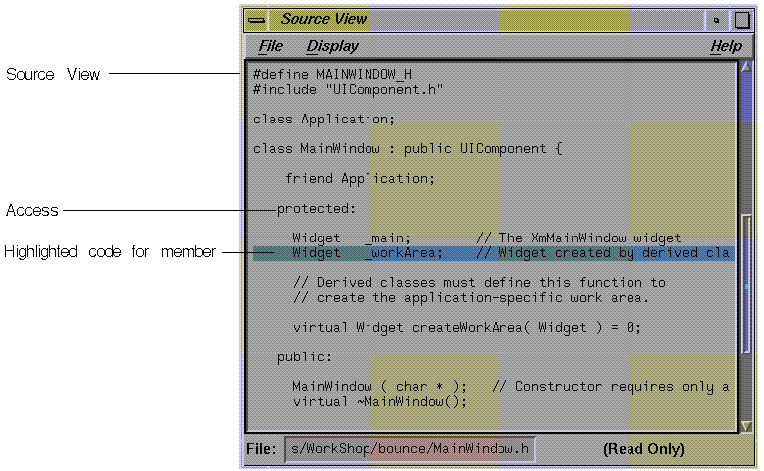
The member list sorts the members of the current class recursively into three nested lists according to the access specification (public, protected, private) of each member. Within each of the three resulting lists, the members are sorted once again by scope into two sublists (instance and static). Finally, within each of these sublists, members are displayed by member category type in this order: type members, data members, methods (member functions), and virtual methods.
Here is a schematic of the outline format for each nested list:
Access (Public, Protected, or Private) Scope (Instance or Static) Types Data Methods Virtual Methods |
For a discussion of these concepts, refer to “C++ Class Structure and the Current Class”. The list organization is customizable. For more information, refer to “Customizing the C++ Browser”.
This section details each of the pop-up query menus available from the member list display. To execute a query from one of these menus, select the member entry you wish to query on by left-clicking on it. Then, click and hold down the right mouse button anywhere in the member list display to open the corresponding query menu. By choosing the dashed line (the first item in each of the menus), you can “tear off” the menu from the menu bar, so that it is displayed in its own window, and is thus always visible.
The Queries on Data Members pop-up query menu performs these queries on selected data members:
The Queries on Methods pop-up query menu performs these queries on selected methods:
The Class View window lists the current class and its related classes in the related class list. Within this list, the current class is displayed as follows:
<- This |
This class refers to the class in the Current Class text field.
Double-clicking on any class listed in the related class list makes it the new current class. Double-clicking on a friend function brings up a Source view window highlighting the function's definition.
The related class list display is composed of seven sublists (not all of which may be in use for a given class):
BASE CLASSES contains the current class and its ancestors, listed hierarchically.
DERIVED CLASSES contains descendants of the current class, listed hierarchically.
USES contains classes that the current class uses (that is, instantiates, destroys, interacts with, or contains).
USED BY contains classes that use the current class.
FRIEND FUNCTIONS contains global functions declared as friends by the current class.
FRIENDS contains classes that are declared as friends by the current class.
FRIEND OF contains classes that declare the current class as a friend.
The Base Classes sublist shows the ancestors of the current class, if any. Each indented class is an ancestor of the class listed above it. The Base Classes sublist indicates a multiple inheritance relationship by indenting the two or more parent classes to the same level. If a given class has ancestors, it is accompanied by an outline icon, which works in a similar manner to the outline icons in the member list. Each ancestor name is followed by its inheritance access type (public, protected or private) listed in parentheses.
This schematic gives an example of a possible Base Classes sublist:
BASE CLASSES <-This first_parent_of_This (access type) parent_of_first_parent_class (access type) second_parent_of_This (access type) parent_of_second_parent_class (access type) |
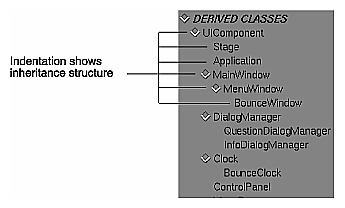
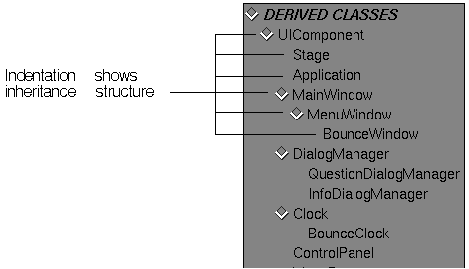
The Derived Classes sublist shows the descendants of the current class, if any. Each indented class is a descendant of the class listed above it. If a given class has descendants, it is accompanied by an outline icon, which also works in a similar manner to the outline icons in the base classes sublist and member list. (See Figure 7-25 for an example.)
This schematic gives an example of a possible Derived Classes sublist:
DERIVED CLASSES first_child_of_This child_of_first_child_class second_child_of_This child_of_second_child_class |
This section details each of the pop-up query menus available from the related class list display. To execute a query from one of these menus, select the name of the class you wish to query by clicking on it with the left mouse button. Then, click and hold down the right mouse button anywhere in the related class list display to open the corresponding query menu. By choosing the dashed line (the first item in each of the menus), you can “tear off” the menu from the menu bar, so that it is displayed in its own window, and is thus always visible.
Most of the related class query menus have two generic commands (shown in Figure 7-26) that affect the selected item:
These two items are omitted from the lists below.
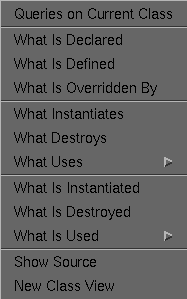
The Queries on Current Class pop-up query menu (see Figure 7-26) contains items identical with those in the Queries menu in the Class View menu bar. It also contains the two generic commands described previously.
The Queries on Base Class pop-up query menu, under the heading BASE CLASSES, performs these queries on selected classes:
| “What Is Declared” | ||
| “What Is Defined” | ||
| “What Is Overridden” |
|
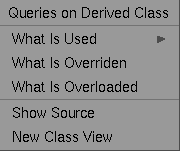
Queries on Derived Class pop-up menu, under the heading DERIVED CLASSES (see Figure 7-27), allows you to perform functions on selected classes:
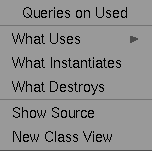
The Queries on Used pop-up menu, under the heading USES (see Figure 7-28), allow you to perform these functions on selected classes:
.
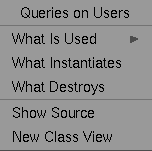
The Queries on Users pop-up query menu, under the heading USED BY (see Figure 7-29), performs these queries on selected classes:
The Queries on Friend Function pop-up query menu is listed in the related class list for the sake of convenience, under the heading FRIEND FUNCTIONS. Double-clicking a friend function opens a Source View window highlighting the first line of the function definition. This menu performs the query described below on the selected friend function.
The Queries on Friend Class pop-up query menu, under the heading FRIENDS, performs the query described below on a selected class.
The Queries on Friend Of pop-up query menu, under the heading FRIEND OF, performs the query describe below on a selected class.
To issue Class View commands directly from the keyboard, use the keyboard accelerators in Table 7-1. The accelerators are listed in alphabetical order.
Table 7-1. Keyboard Accelerators for Class View
Command | Ctrl + key |
|---|---|
Change to previous class | P |
Exit C++ Browser | X |
Highlight what is declared by the current class | L |
Highlight what is defined by the current class | E |
Highlight what is overridden by the current class | R |
Open another Class View | V |
View Call Graph | A |
View Containment Class Graph | O |
View Friend Class Graph | F |
View Inheritance Class Graph | I |
View Interaction Class Graph | T |
View list of classes | U |
View list of classes shown previously | H |
You invoke the Class Graph and Call Graph windows from the Views menu of the Class View window. These windows show graphical views of the current fileset. As their names suggest, a Class Graph displays class relationships, and a Call Graph displays methods and their calling relationships. However, the displays and controls have the same features.
Figure 7-30 shows the bounce fileset class hierarchy. The Class Graph Context View shows an overview of the selected class with respect to the fileset. This section describes in detail how to view classes in a Class or Call Graph window.
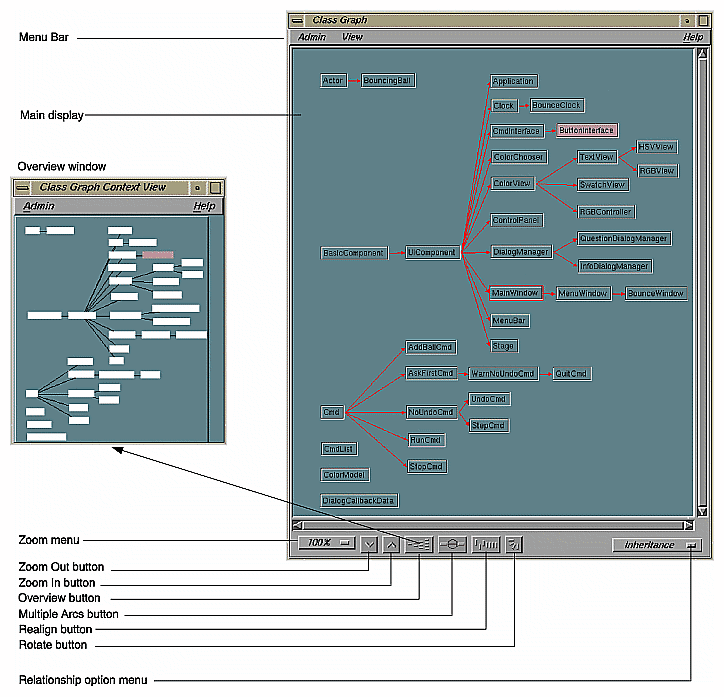
The Class and Call Graph main display presents a graphical view of classes (or class nodes) and methods (or method nodes) and their relations. These nodes can be selected, hidden, collapsed, expanded, and moved. Double-clicking nodes are documented under separate headings for each kind of window.
There are several ways to select nodes:
To select a single node, click on it with the left mouse button. It becomes highlighted in red.
To select a node and all of its descendant nodes, hold down the <Shift> key while clicking on the desired node.
To select an arbitrary group of nodes, hold down the left mouse button in an empty area of the display, and then drag it. A box is drawn; move the mouse so that all nodes you want to select are inside the box, then let go of the mouse button.
Two pop-up menus in the main display manipulate nodes: the Class or Method Node pop-up menu, and the Selected Node pop-up menu.
The Class or Method Node Pop-Up Menu appears if you hold down the right mouse button over a particular node. The node's name appears as the menu title. The node does not need to be selected for the menu commands to apply. It contains these commands:
“Collapse Subgraph” hides the named node and its descendants .

“Show Immediate Children” adds any non-visible children of the named node to the graph. If a node has hidden children, it contains an arrow within the node pointing to the right (see Figure 7-31).
“Show Parents” adds any hidden parents of the named node to the graph.
Any menu items that are not applicable for a given node are grayed out when the menu is opened.
The Selected Nodes pop-up Menu appears if you hold down the right mouse button over an empty portion of the main display. The commands apply to any selected nodes.
You can move any single node (selected or not) by holding the middle mouse button down over the desired node and dragging to the new desired position. You can move a group of nodes by first selecting them, then holding down the middle mouse button over any of the selected nodes and dragging to the new position.
The Class or Call Graph main display can be manipulated with the controls found at the bottom of the Class or Call Graph window. Refer to Figure 7-30.
The Zoom option menu and Zoom buttons let you choose the size of the class nodes in the Class or Call Graph display. You can choose one of the items from the option menu, or click on either of the two buttons to the right of the menu to zoom in or out on the graph.
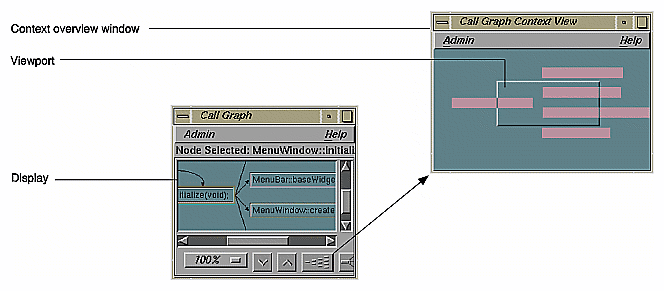
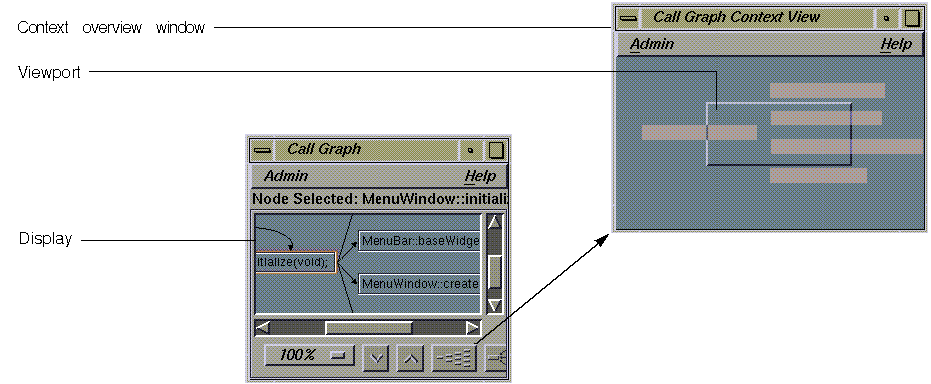
Clicking on the Overview button opens the Context View window for the Class or Call Graph display. As you move the rectangular pane over a condensed, schematic version of the graph displayed within the Class or Call Graph window, the display scrolls accordingly.
For example, Figure 7-32 shows the Call Context View window opened from a Call Graph. The area under the rectangular viewport is displayed in the Call Graph window. In a Class Graph Context View, the currently selected class node is highlighted in a different color from that of the other class nodes.
Clicking on the Multiple Arcs button toggles the Class or Call Graph display between showing a single arrow for multiple instances of a relationship between two nodes, and showing a separate arrow for each instance.
Clicking on the Align button tidies the nodes of the currently displayed graph, snapping them into an orderly configuration.
The Class Graph window is invoked from the Views menu of the Class View window. It displays a graphical view of classes in the current fileset and their relationships. For details about the display, refer to “Class Graph and Call Graph Displays”. This section discusses the menu bar, keyboard accelerators, double-clicking, and the relationship option menu.
The Class Graph window's menu bar contains the three menus described in this section. By choosing the dashed line (the first item in each of the menus), you can “tear off” the menu from the menu bar, so that it is displayed in its own window, and is thus always visible.
The Class Graph Admin menu contains two commands:
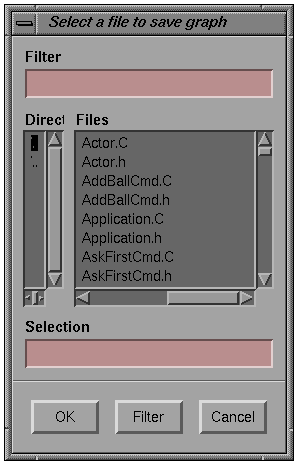
| “Save Graph” | allows you to save the graph to a file. It brings up a file selection dialog. When you select your file and click on “OK,” it saves the graph as a PostScript® file with the name specified in “Selection.”(See Figure 7-33.) | |
| “Close” | closes the Class Graph window when selected. |
The Class Graph Views menu commands control which classes included in the current fileset are displayed in the Class Graph window. The choices are describe below.
| “Show All” | displays all classes included in the fileset as nodes, and their relations as arcs, as chosen from the relationship option menu (see Figure 7-30). | |
| “Show All Related” |
| |
| “Show Butterfly” |
|
The Help menu contains commands that allow you to access online information about the C++ Browser. For more information on the help features of the C++ Browser, refer to “Help Menu”, and to Chapter 2, “Using On-line Help,” in the CASEVision Environment Guide.
The current class that is displayed in the Class View from which the Class Graph window was launched is highlighted in the Class Graph window. Double-clicking with the left mouse on any class node in the Class Graph window makes that class the new current class in both the Class View and Class Graph windows.
The relationship option menu lets you switch between viewing the different kinds of class relationships in a Class Graph window. The different graphs that you can display through the the option menu are listed below.
“Inheritance”
“Containment”
“Interaction”
“Friends”
Refer to “Views Menu” for descriptions of these menu commands.
To issue Class Graph commands directly from the keyboard, use the accelerators in Table 7-2. The accelerators are listed alphabetically by command.
Table 7-2. Keyboard Accelerators for Class Graph
Command | Ctrl + key |
|---|---|
Show all | A |
Show all related | R |
Show butterfly | B |
The Call Graph window is invoked from the Views menu of the Class View window or from the Queries on Methods pop-up menu for a selected method of the current class. It displays a graphical view of methods of the current class, as shown in Figure 7-34. For details about the display that are the same in the Class Graph window, see “Class Graph and Call Graph Displays”.
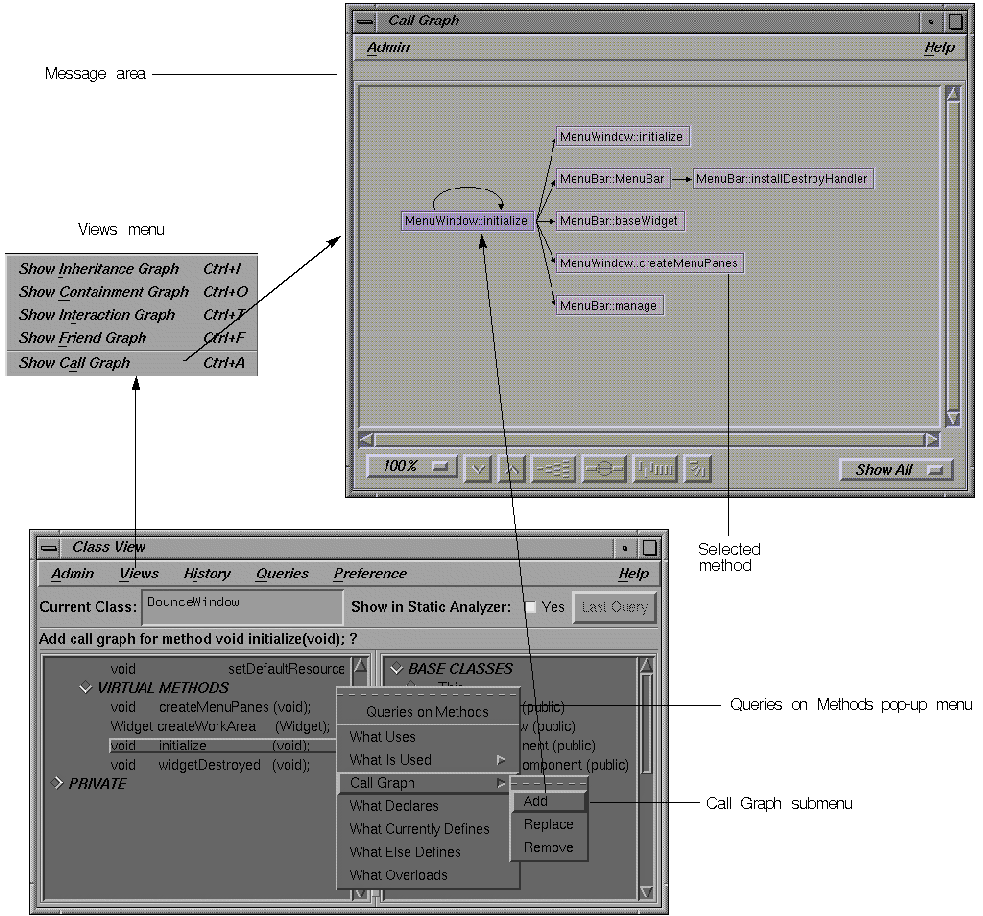
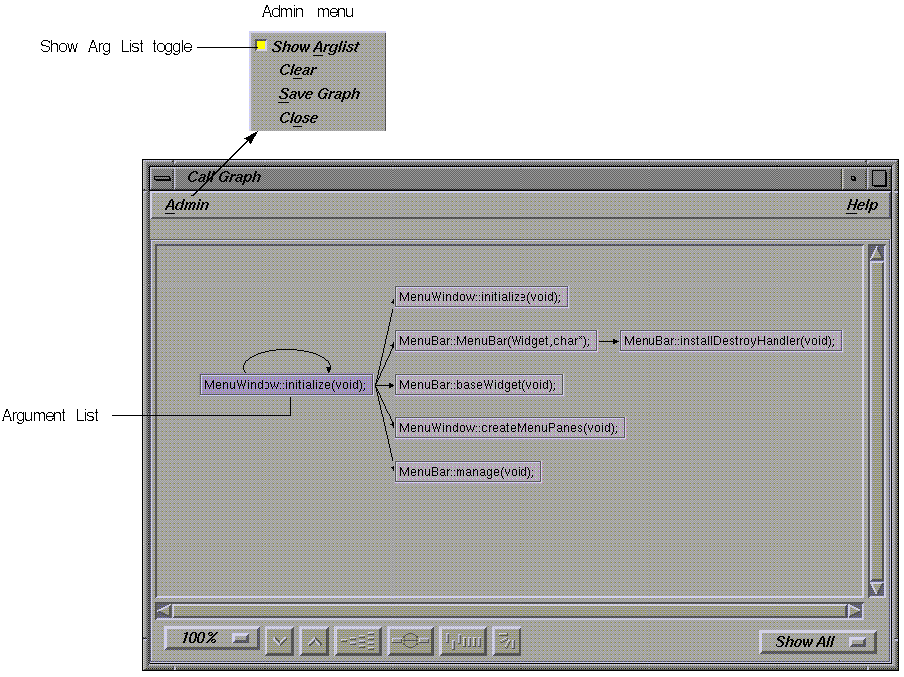
You add, replace, or remove methods by using the Queries on Methods pop-up menu in the member list of the Class View window. Refer to the Call Graph submenu description in “Member List Query Menus”. Note that when you select a node in the display, a message area opens below the menu bar, showing the method with its argument list.
In a Call Graph window, double-clicking on any method node opens a Source View window on the code defining the method. The definition is highlighted in the source.
The Call Graph window's menu bar contains the two menus described in this section. By choosing the dashed line (the first item in each of the menus), you can “tear off” the menu from the menu bar, so that it is displayed in its own window, and is thus always visible.
The Call Graph window's Admin menu contains the toggle and three commands described below.
| “Show Arglist” toggle |
| |
| “Clear” | ||
| “Save Graph” | allows you to save the graph to a file. It brings up a file selection dialog. When you select your file, it saves the graph to a postscript file. See Figure 7-33 for an example. | |
| “Close” | closes the Call Graph window.  |
The Help menu contains commands that allow you to access online information about the C++ Browser. For more information on the help features of the C++ Browser, refer to “Help Menu”, and to Chapter 2, “Using On-line Help,” in the CASEVision Environment Guide.
The C++ Browser lets you customize your display and the way you work with reference pages (man pages). These formats are implemented as X application resources that you can redefine in your local .Xdefaults file. After editing it, run xrdb .Xdefaults and then reopen the Static Analyzer.
This section shows you how to customize the outline formats of Class View lists by applying your own keyword headers and rearranging the features of each list.
The layout of the Class View member list is controlled by this resource:
Cvstatic*memberOrder |
The general format of this resource is as follows:
Level-1-keyword: HEADING [keyword], HEADING [keyword],..; Level-2-keyword: HEADING [keyword], HEADING [keyword],...; Level-3-keyword: HEADING [keyword], HEADING [keyword],...; |
The three level keywords are Protection, Scope, and Member. The order in which these are used determines the level of nesting in the outline list used for protection, scope, and member headings, respectively.
Headings may consist of any string you choose to describe the heading category. The headings listed with the level-1 keyword become top-level headings in the outline list, the level-2 headings appear indented under each of the level-1 headings, and the level-3 headings appear indented beneath each of the level-2 headings.
Each heading in a level has an associated keyword that determines the sort of items that appear under the heading. The allowable keywords are as follows for each associated level keyword:
| Protection: | [public], [protected], [private] | |
| Scope: | [instance], [static] | |
| Member: | [type], [data], [method], [virtualmethod] |
It is also possible to combine the types associated with two or more keywords under one heading by using the construction for any given heading:
HEADING [keyword1+keyword2+...] |
You can also control whether a heading is expanded or collapsed when the browser starts up. Placing an asterisk (*) at the end of the heading string causes that heading to be collapsed by default:
HEADING* [keyword] |
The default assignment for the outline resource of the member list can be found in /usr/lib/X11/app-defaults/Cvstatic. The contents of the file appear below:
Cvstatic*memberOrder: Protection: PUBLIC [public], PROTECTED* [protected], PRIVATE* [private]; Scope: INSTANCE [instance], STATIC [static]; Member: TYPE* [type], DATA [data], METHODS [method], VIRTUAL_METHODS [virtualmethod]; |
 | Note: The sample above is a single line. |
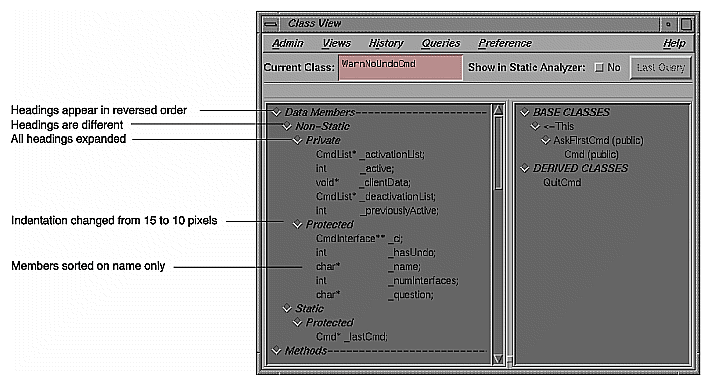
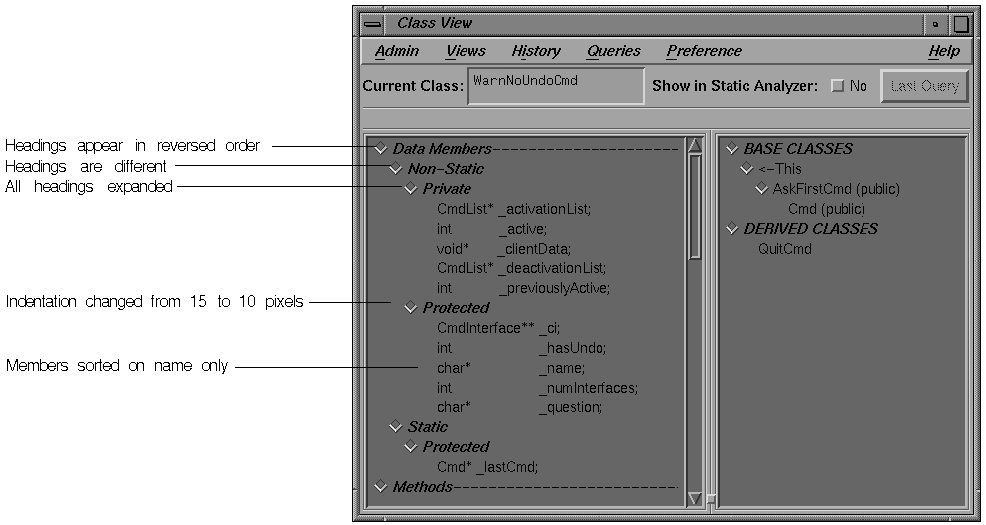
You can override this definition by placing your own definition in your local .Xdefaults file. For example, to make the display look like the sample in Figure 7-36, add this line:
Cvstatic*memberOrder: Member: IS (Type) [type], Data Members--------------------- [data], Methods----------------------------- [method], Virtual Methods-------------------- [virtualmethod]; Scope: Non-Static [instance], Static [static]; Protection: Private [private], Protected [protected], Public [public]; |
The layout of the Class View related class list is controlled by this resource:
Cvstatic*relationOrder |
The construction of this resource is similar to that of the member list, but simpler:
HEADING [keyword], HEADING [keyword],... |
The headings and keywords work as described for the member list, but there is no concept of level keywords in the related class list.
The allowable keywords for the related class list are as follows:
[base], [derived], [uses], [usedby], [friendfunction], [friend], [friendof]
| Note: In the related class list, headings cannot contain multiple keywords, as they can in the member list. |
As in the member list, you can control whether a heading in the related class list is expanded or collapsed when the browser starts up. Placing an asterisk (*) at the end of the heading string causes that heading to be collapsed by default:
HEADING* [keyword] |
The default assignment for the related class list outline resource can be found in /usr/lib/X11/app-defaults/Cvstatic, and is listed below for your convenience:
Cvstatic*relationOrder: BASE CLASSES [base], DERIVED CLASSES [derived], USES [uses], USED BY [usedby], FRIEND FUNCTIONS [friendfunction], FRIENDS [friend], FRIEND OF [friendof] |
You can override this definition by placing your own definition in your local .Xdefaults file. For example, for the display shown in Figure 7-36, try this:
Cvstatic*relationOrder: Parent Classes [base], Child Classes [derived], Used Classes [uses], User Classes [usedby], Friend Functions [friendfunction], Friend Classes [friend], Friend Of [friendof] |
XWindows resources listed in this section, found in /usr/lib/X11/app-defaults/Cvstatic, can be modified in your local .Xdefaults file. The default values are listed with each resource. You can set any true value to false.
| Cvstatic*completeClassName: true |
| ||
| Cvstatic*showMessageArea: true |
| ||
| Cvstatic*scream: true |
| ||
| Cvstatic*indentationWidth: 15 |
| ||
| Cvstatic*nameAlign: true |
| ||
| Cvstatic*arglistAlign: true |
| ||
| Cvstatic*sort: true | | ||
| Cvstatic*nameSort: true | |
Using both of the previous resources in conjunction sorts first by type and then by name, as shown in Table 7-3.
Table 7-3. Sort Resources for Outline Lists
sort | name | Sort effect |
|---|---|---|
false | false | Members are in declaration order |
false | true | Members are sorted based on the name and not on type or return type. This behavior is shown in Figure 7-36. |
true | false | Members are sorted based on the their return type or type. Within the same return type, members appear in declaration order. |
true | true | Members are sorted both on their type or return type and their name. This is the default behavior. |
Figure 7-36 shows the Class View display using the sample resources set in .Xdefaults.
The resources in this section are associated with the Man Pages for Classes window, available from the Class View Admin menu item “Generate Man Pages.”
| Cvstatic*manPageDirPath: <default manpage directory path> |
| ||
| Cvstatic*manPageSuffix: .<suffix> |
| ||
| Cvstatic*manPageViewCommand: <commands> |
| ||
| Cvstatic*manPageCopyRightMessage: <string> |
|