This flier provides information about the narrow SCSI, auto-eject, SuperDisk 120 MB external floppy drive. The drive has 50-pin Centronics connectors, and is designed to work with O2 and OCTANE workstations running IRIX 6.5.4 and later releases.
This shipment contains the following:
IRIX 6.5.4 or later overlay CDs
120 MB External SCSI Floppy Disk Drive
Power cord
SCSI drive-to-workstation cable
Terminator
 | Note: Base IRIX 6.5 is not included with this shipment. If you need the base IRIX 6.5 operating system, contact your authorized Silicon Graphics representative. |
Before you power off your workstation to install the drive, check the SCSI addresses of the peripherals attached to your workstation.
The default setting on the drive is SCSI address 6. To determine the addresses set for currently installed devices, go to the Toolchest > System > Disk Manager and check the address under the drive icon. If necessary, set an address on the drive that does not conflict with those addresses in use.
Check the current drive addresses and set the SCSI address on the floppy drive before you begin the installation process.
For complete information on installing the 120 MB external floppy drive, see the instructions in your printed owner's guide, in the section on installing external SCSI devices. The owner's guide includes cable length restrictions and other important facts about your workstation's SCSI buses. The online O2 Hardware Reference Guide also contains SCSI drive installation information. It is found from the Toolchest > Help > Online Books or Toolchest > Help > InfoSearch (depending on which version of the IRIX operating system you have installed).
The O2 Workstation Owner's Guide, the O2 Hardware Reference Guide, and the OCTANE Workstation Owner's Guide are also available over the Web at http://techpubs.sig.com/library.
If this is the first SCSI device attached to the workstation, use the cable and terminator that comes with the device. Using other types of cables or terminators can result in data loss.
For the second and each additional SCSI device, use a Centronics 50-pin to Centronics 50-pin cable. Make sure you do not exceed the maximum recommended cable length for your workstation. (See your workstation's owner's guide for maximum cable lengths.) Attach the Centronics active terminator shipped with this device to the last SCSI device on the daisy chain.
If you wish to mix 16-bit wide and 8-bit narrow devices on the same SCSI bus, you must place the wide devices as a group closest to the workstation, and place the narrow devices at the end of the daisy chain. See your workstation owner's guide for complete cabling instructions including cable restrictions.
This section explains disk formatting for the 120 MB floppy drive. Low-level formatting of floppy diskettes is not recommended or supported on Silicon Graphics IRIX workstations. Preformatted SuperDisks (Ultra High Density, UHD) diskettes are supported on the 120 MB floppy drive and are available in most local computer stores. Use the formatting utilities on either PC and Macintosh computers if it is necessary to reformat a diskette.
| Note: For IRIX 6.5.4 only, high-level formatting of DOS 1.4 MB, DS-HD type media is not recommended. If high-level formatting is done from the desktop or command line (mkfp -t dos), it results in an incorrect DOS filesystem capacity of only 354 KB. |
Silicon Graphics Supported Floppy Diskette Types:
IBM - FAT filesystem
1.7 MB, DS-HD - DMF (Distribution Media Format) (Read-Only)
1.4 MB, DS-HD (Double Sided, High Density)120 MB, SuperDisk UHD (Ultra High Density)
MAC - HFS filesystem
1.4 MB, DS-HD
120 MB, UHD
Silicon Graphics - EFS or XFS filesystem
120 MB SuperDisk (UHD)
| Note: You can eject the 120 MB floppy drive from the desktop as well as manually. |
 | Caution: Do not ship or transport the 120 MB floppy drive with a diskette installed. Leaving a diskette in the drive when the drive is being transported or moved can cause damage to the drive. The diskette mechanism locks in place when a diskette is ejected to ensure that the drive sustains no damage during shipment or movement. The mechanism is unlocked when a diskette is loaded. |
Cleaning the 120 MB floppy drive after every 40 to 80 hours of operation is recommended. For more information on cleaning the drive, see http://www.imation.com/superdisk
This device conforms to several national and international specifications and European Directives listed on the “Manufacturer's Declaration of Conformity.” The CE insignia displayed on each device is an indication of conformity to the European requirements.
| Caution: This device has several governmental and third-party approvals, licenses, permits. Do not modify this product in any way that is not expressly approved by Silicon Graphics. If you do, you may lose these approvals and your governmental agency authority to operate this device. |
A “Manufacturer's Declaration of Conformity” is available on the World Wide Web. Look on your system (regulatory) label on the rear or bottom of your workstation to determine your CMN (model) number, which you need to identify your Declaration of Conformity.
To locate the information on the World Wide Web, enter the following in your Web browser location window:
http://www.sgi.com/compliance/index.html |
This equipment complies with Part 15 of the FCC Rules. Operation is subject to the following two conditions: (1) This device may not cause harmful interference, and (2) this device must accept any interference received, including interference that may cause undesired operation.
| Note: This equipment has been tested and found to comply with the limits for a Class A digital device, pursuant to Part 15 of the FCC Rules. These limits are designed to provide reasonable protection against harmful interference when the equipment is operated in a commercial environment. This equipment generates, uses, and can radiate radio frequency energy and, if not installed and used in accordance with the instruction manual, may cause harmful interference to radio communications. Operation of this equipment in a residential area is likely to cause harmful interference in which case the user will be required to correct the interference at his own expense. |
If this equipment does cause harmful interference to radio or television reception, which can be determined by turning the equipment off and on, the user is encouraged to try to correct the interference by one of more of the following measures:
Reorient or relocate the receiving antenna.
Increase the separation between the equipment and receiver.
Connect the equipment into an outlet on a circuit different form that to which the receiver is connected.
Consult the dealer or an experienced radio/TV technician for help.
For additional information you can check the FCC Web site by entering the following address in your Web browser location window:
http://www.fcc.gov/Bureaus/Compliance/WWW/tribook.html
| Caution: The user is cautioned that changes or modifications to the equipment not expressly approved by the party responsible for compliance could void the user's authority to operate the equipment. |
This device complies with the Class A limits of Part 15 of the FCC Rules. Operation is subject to the following two conditions:
This device may not cause harmful interference.
This device must accept any interference received, including interference that may cause undesired operation.
Also, this device complies with Class A electromagnetic emissions limits of C.I.S.P.R. Publication 22, Limits and Methods of Measurement of Radio Interference Characteristics of Information Technology Equipment.
This Class A digital apparatus meets all requirements of the Canadian Interference-Causing Equipment Regulations.
Cet appareil numérique német pas de perturbations radioélectriques dépassant les normes applicables aux appareils numériques de Classe A préscrites dans le Règlement sur les interferences radioélectriques établi par le Ministère des Communications du Canada.
This device complies with Class A electromagnetic emissions limits of C.I.S.P.R. Publication 22, Limits and Methods of Measurement of Radio Interference Characteristics of Information Technology Equipment; and Japan's VCCI Class A limits.
Chinese Statement

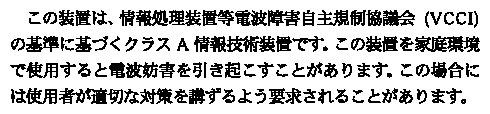
Japanese Statement
The O2 and OCTANE workstations are FCC-compliant under test conditions that include the use of shielded cables between O2 or OCTANE and its peripherals. Your O2 or OCTANE workstation and any peripherals you purchase from Silicon Graphics have shielded cables. Shielded cables reduce the possibility of interference with radio, television, and other devices. If you use any cables that are not from Silicon Graphics, make sure they are shielded. Telephone cables do not need to be shielded.
The monitor cable supplied with your system uses additional filtering molded into the cable jacket to reduce radio frequency interference. Always use the cable supplied with your system. If your monitor cable becomes damaged, a replacement cable should be obtained from Silicon Graphics.
This product contains a Class 1 laser which is harmful to the eyes. Only qualified technical personnel should disassemble the drive for servicing. Class 1 laser product means any laser product that does not permit access during the operation to levels of laser radiation in excess of the accessible emission limits specified by CFR, Title 21, subchapter J, part 1040.10 and 1040.11. Class 1 levels of laser radiation are not considered to be hazardous.
Silicon Graphics designs and tests its products to be immune to the effects of electrostatic discharge (ESD). ESD is a source of electromagnetic interference and can cause problems ranging from data errors and lockups to permanent component damage.
It is important that while you are operating your O2 or OCTANE workstation, you keep all the covers and doors, including the plastics, in place. The shielded cables that came with the workstation and its peripherals should be installed correctly, with all thumbscrews fastened securely.
An ESD wrist strap is included with some products, such as memory and graphics upgrades. The wrist strap is used when installing these upgrades to prevent the flow of static electricity, and it should protect your system from ESD damage.
Silicon Graphics provides a comprehensive range of product support for its products. If you are in North America and would like support for your Silicon Graphics supported products, contact the Technical Assistance Center at 1-800-800-4SGI or your authorized service provider. If you are outside North America, contact the Silicon Graphics subsidiary or authorized distributor in your country.